
Drone Spawning
Overkill delivery drones need a spawner and a configured spawn group. This page covers their spawn settings, in-game testing and troubleshooting.
Before setting up the drone, follow Air Navigation to generate flight space covering the spawn position, delivery areas and routes between them.
Set up the Overkill drone
Air Navigation supplies flight space. The heist also needs a drone spawner and its configured spawn group.
Add the spawner and group
-
In the Asset Palette or Content Browser, find
BP_DroneSpawnerand drag it into your heist level. -
Search the Place Actors panel for
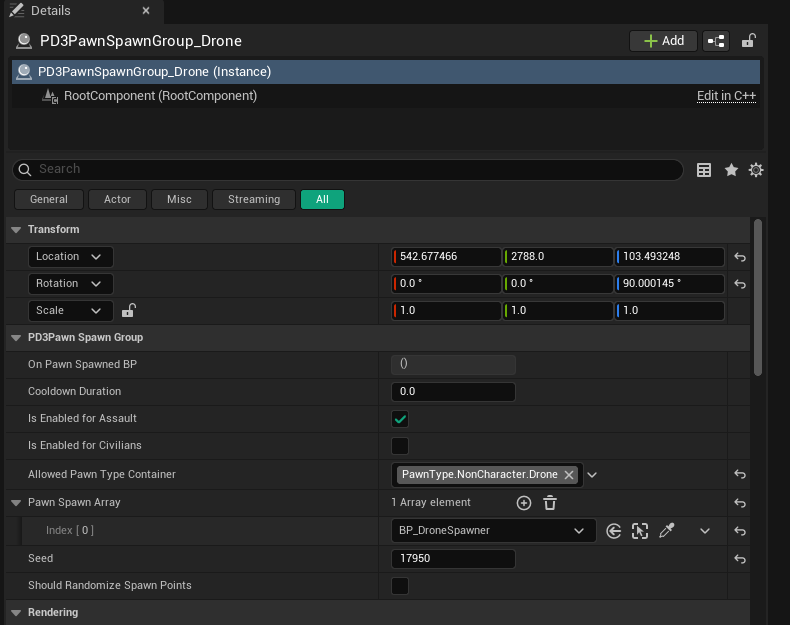
PD3PawnSpawnGroupand add one to the level for the drone spawner. -
Select the
PD3PawnSpawnGroupand enable Is Enabled for Assault. -
In Allowed Pawn Type Container (
AllowedPawnTypeContainer), addPawnType.NonCharacter.Drone. -
Expand Pawn Spawn Array (
PawnSpawnArray), add an entry and assign theBP_DroneSpawneractor you placed in the level. Placing the actors near each other does not create this reference.
Set the actual spawn position
-
Position the drone spawner in an open area within the generated Air Navigation. Leave enough room for the drone to appear and begin flying without intersecting walls, roofs or other nearby geometry.
-
Select
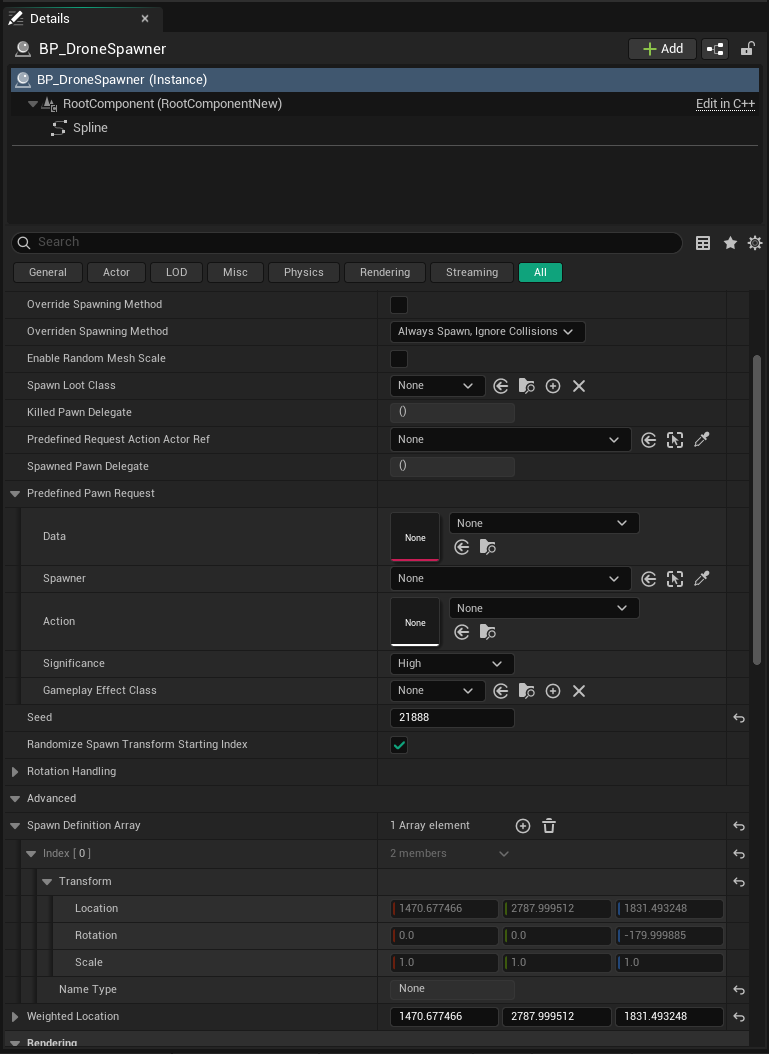
BP_DroneSpawnerand copy its actor Location into Weighted Location (WeightedLocation). The X, Y and Z values must match the actor’s world location. -
Expand Spawn Definition Array (
SpawnDefinitionArray) and the entry’s Transform. The array is greyed out, but you can still copy the location into it: hold Ctrl and right-click the actor’s Location to copy it, then hold Ctrl and left-click the array entry’s Transform > Location to paste it. Check that the stored Location, Rotation and Scale match the actor’s world transform, and repeat for any additional entries. -
After moving or rotating the spawner, update these stored values to match the actor again and save the level. Rebuild Air Navigation if you changed bounds or geometry, or need to extend coverage to the new starting area.
|
Spawn Definition Array stores a full transform; Weighted Location stores only a position. Set the array entry’s Location, Rotation and Scale to match the drone spawner actor’s transform, and set Weighted Location to match that actor’s Location. Use your own actor’s values rather than copying the example coordinates below. Moving the visible actor does not necessarily update its stored spawn positions. Always check both settings after repositioning the spawner. |
Troubleshooting
The drone doesn’t spawn
Select the PD3PawnSpawnGroup and check that Is Enabled for Assault is enabled, Allowed Pawn Type Container contains PawnType.NonCharacter.Drone, and Pawn Spawn Array references the intended BP_DroneSpawner actor. Save and Forge the updated heist before testing another Overkill delivery.
The drone spawns but doesn’t move
-
Check where the drone actually appears in-game, rather than relying only on the spawner’s editor position.
-
Make sure that position is covered by generated Air Navigation and has room for the drone to begin flying. Look for nearby walls, ceilings and obstructing geometry.
-
Verify that
WeightedLocationmatches the drone spawner actor’s Location and everySpawnDefinitionArraytransform matches its full world transform. -
Try moving the spawner to an unobstructed area. Update stored positions and rebuild navigation if coverage or geometry changed.
-
Save the generated navigation and spawn settings, then Forge again. Ensure the level containing
SBZAirNavigationis included in the packaged heist and loaded during play.
Repositioning the spawner resolved this exact symptom in testing. A stationary drone that drops its bag is not by itself evidence of a generator bug.
The drone spawns somewhere unexpected
Compare the actor’s visible transform with WeightedLocation and the transforms in SpawnDefinitionArray. Existing configured values may still point to an earlier position. Check that the group references the intended spawn actors, including any alternative points.
Game spawning behaviour may also involve additional placement logic. Correcting these stored values is a useful check, not a guarantee that the runtime will use the actor’s exact visible position.
The drone spawns outside the bounds
Inspect the actual spawn position, including its height. Correct stale stored positions first. If that starting area is intentional, move or extend the bounds, or add another volume to cover it and the route to the delivery area. Rebuild, save and Forge again.
Coverage around the destination alone is insufficient: the drone needs navigable space at its starting point and along its flight route.
Air Navigation is valid but the drone doesn’t fly
A valid navigation check at one position does not guarantee movement between that position and a particular destination. Check the drone’s clearance, continuous navigation coverage along the route, the requested delivery destination and the drone’s spawn and movement setup.
Test from an open starting area toward a nearby, unobstructed delivery area first. If that works, expand testing to the other routes in your heist. Save and package the latest generated data before comparing results.