Mod Settings
PDML provides a shared settings system for Blueprint mods. Mods can register settings in their mod metadata, PDML creates the settings UI, and the settings library handles loading, saving, and retrieving the current values at runtime.
The following setting types are currently supported:
-
Toggle
-
Float
-
Color
-
Keybind
-
String
-
Multiple choice
You normally only need to define the settings in your mod metadata and read their values from Blueprint. PDML handles the settings menu and persistence.
Register settings in your mod metadata
Open your mod’s PDA_ModMeta asset and expand the Settings array.
Each element of Settings is a settings group. A mod can have as many groups as required to organise its settings.
For each group, set:
-
Unique ID - An internal name used to identify the group.
-
Display Text - The name shown for the group in the PDML settings menu.
Each group contains separate arrays for the supported setting types:
-
ToggleSettings -
FloatSettings -
ColorSettings -
KeybindSettings -
StringSettings -
ChoiceSettings
Add each setting to the array that matches the type of value you want to expose.
|
Give every setting a unique and stable Unique ID. This is the name you will use later when reading the setting from Blueprint. Do not change a setting’s Unique ID after release unless you also intend to migrate its saved value. |
Setting properties
All setting types have a Row Index. The Row Index controls the setting’s position inside its group across all setting types.
For example:
| Setting | Type | Row Index |
|---|---|---|
Show Teammate Names |
Toggle |
0 |
HUD Scale |
Float |
1 |
Accent Color |
Color |
2 |
Open HUD Menu |
Keybind |
3 |
PDML combines the different setting arrays and sorts the resulting rows by Row Index, so the menu is displayed as 0, 1, 2, 3 rather than grouping all toggles, floats, colors, and other types separately.
Use unique Row Index values when you need a completely predictable order. If multiple settings use the same Row Index, their relative order depends on their registration order.
Toggle settings
Toggle settings expose a Boolean value.
| Property | Purpose |
|---|---|
Unique ID |
Internal name used to access the setting. |
Display Text |
Label displayed in the settings menu. |
Default Value |
Initial enabled or disabled state. |
Row Index |
Position of the setting inside the group. |
Float settings
Float settings expose a numeric slider.
| Property | Purpose |
|---|---|
Unique ID |
Internal name used to access the setting. |
Display Text |
Label displayed in the settings menu. |
Min |
Minimum value of the slider. |
Max |
Maximum value of the slider. |
Increment Value |
Step used when changing the value. |
Default Value |
Initial value. |
Row Index |
Position of the setting inside the group. |
Color settings
Color settings expose a color picker and store a Linear Color value.
| Property | Purpose |
|---|---|
Unique ID |
Internal name used to access the setting. |
Display Text |
Label displayed in the settings menu. |
Default Value |
Initial color. |
Row Index |
Position of the setting inside the group. |
Keybind settings
Keybind settings allow the player to assign both a primary and secondary input chord.
| Property | Purpose |
|---|---|
Unique ID |
Internal name used to identify the keybind. |
Display Text |
Label displayed in the settings menu. |
Default Primary |
Default primary Input Chord. |
Default Secondary |
Default secondary Input Chord. |
Row Index |
Position of the setting inside the group. |
An Input Chord contains the key and its modifier state, allowing bindings such as F8, Ctrl+H, or a gamepad key to be stored as one setting value.
See React to keybind input for using a registered keybind at runtime.
String settings
String settings expose an editable string value.
| Property | Purpose |
|---|---|
Unique ID |
Internal name used to access the setting. |
Display Text |
Label displayed in the settings menu. |
Value |
Initial string value. |
Row Index |
Position of the setting inside the group. |
Multiple choice settings
Multiple choice settings expose a list of named options.
| Property | Purpose |
|---|---|
Unique ID |
Internal name used to access the setting. |
Display Text |
Label displayed in the settings menu. |
Choices |
Array of option names shown to the player. |
Row Index |
Position of the setting inside the group. |
The selected value is stored and retrieved as the choice index. Use that index with the Choices array when you need the selected option name.
Access setting values in Blueprint
The settings functions are available from BPFL_PDML_Settings.
Use the getter that matches the setting type:
-
GetToggleSettingValue -
GetFloatSettingValue -
GetColorSettingValue -
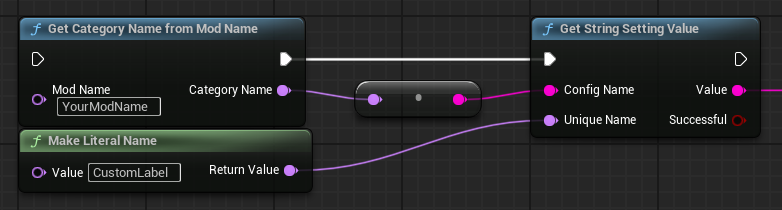
GetStringSettingValue -
GetChoiceSettingValue -
GetKeybindSettingValue
Most value getters also expose a Successful output. Check this when the lookup may happen before PDML has registered the mod settings, or when the Unique Name may be invalid. GetKeybindSettingValue exposes separate success outputs for the primary and secondary bindings.
The value getters use two identifiers:
-
Config Name - The PDML settings category/config generated for the mod.
-
Unique Name - The setting’s Unique ID from
PDA_ModMeta.
To obtain the Config Name, call:
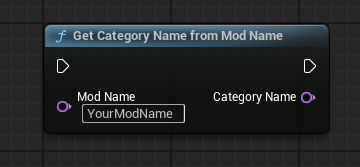
and pass the same mod name used by your mod metadata when PDML registers the settings.
A typical lookup is:
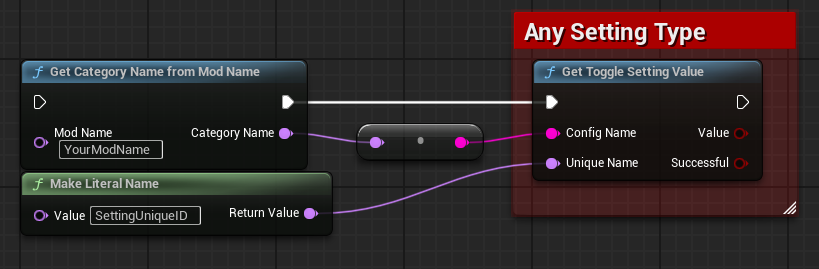
Toggle example
For a toggle with the Unique ID ShowHealthBar:
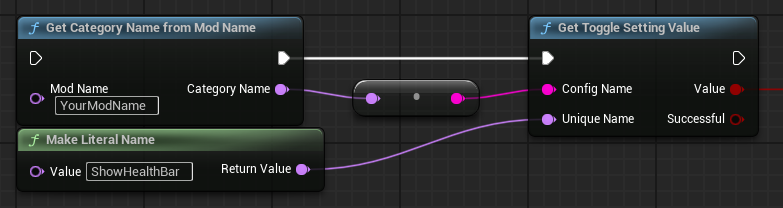
Use the returned Boolean directly for visibility or other gameplay/UI logic.
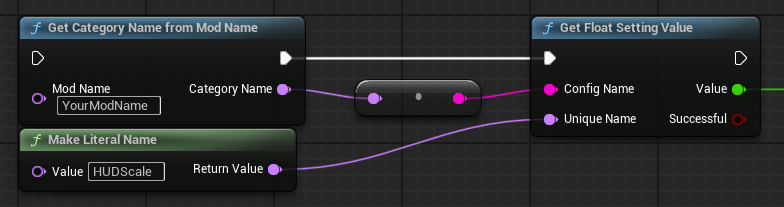
Color example
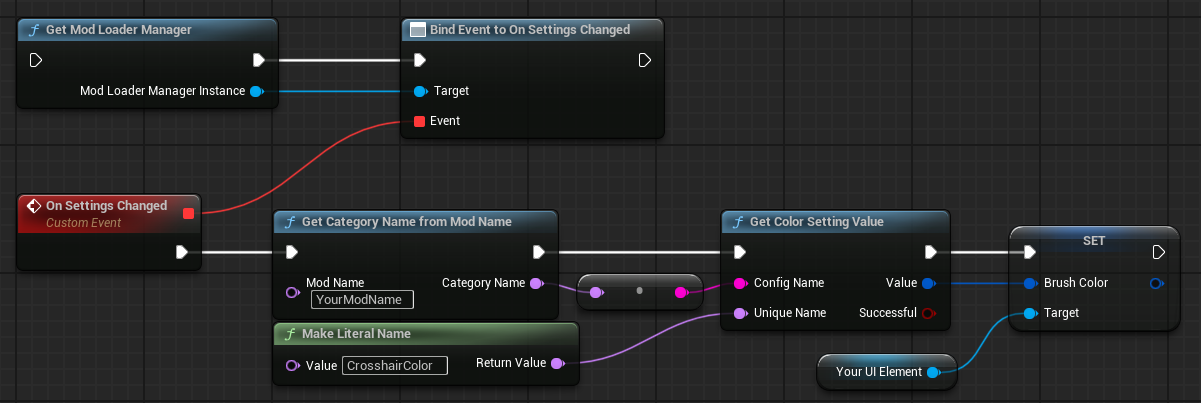
For a color setting with the Unique ID CrosshairColor:
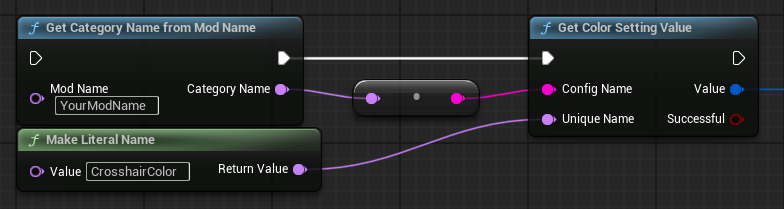
The returned value is a Linear Color and can be applied directly to compatible UMG and material color inputs.
Multiple choice example
For a multiple choice setting with the Unique ID ReticleStyle:
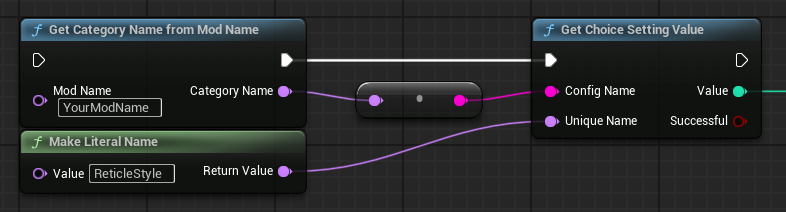
Value is the selected choice index.
For example, if the Choices array is:
0 = Dot
1 = Cross
2 = Circle
and GetChoiceSettingValue returns 2, the selected option is Circle.
Keybind value example
Use GetKeybindSettingValue when you need the player’s currently configured chords.
It provides the primary and secondary Input Chords separately, along with success outputs for each lookup.
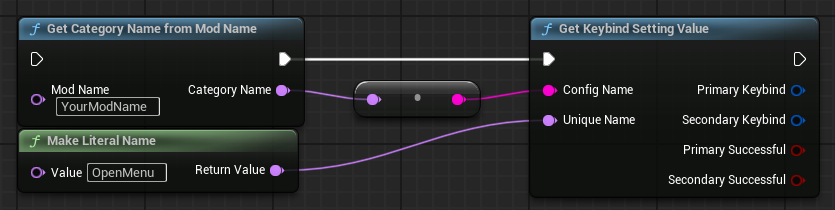
You normally do not need to poll these chords yourself. PDML exposes keybind activity through the mod loader dispatcher described below.
React to setting changes
Settings can be changed at any time from the PDML settings menu. If your mod needs to update immediately when the player changes a setting, bind to the Mod Loader’s OnSettingsChanged dispatcher.
Get the PDML Mod Loader reference with GetModLoaderManager, then bind an event to:
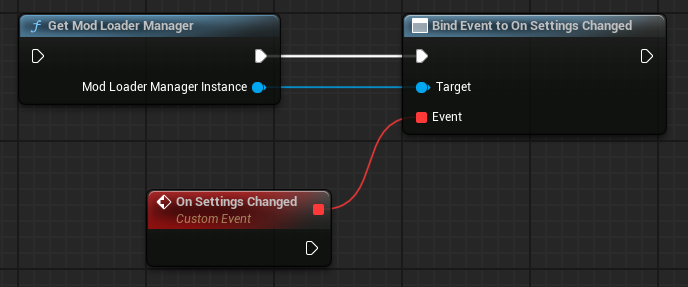
The dispatcher does not provide a specific setting value. When it fires, call the appropriate settings getter again and apply the latest value to your mod.
A typical Blueprint setup is:
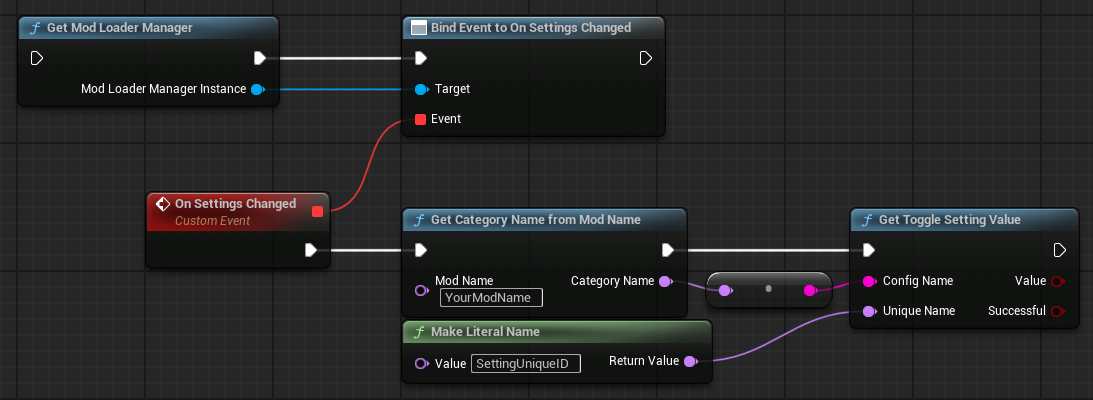
For example, a HUD widget using a color setting called CrosshairColor can refresh itself like this:
If a widget uses several settings, it is usually simplest to create a function such as RefreshSettings that reads all settings used by that widget. Call it once when the widget is initialized and again from OnSettingsChanged.
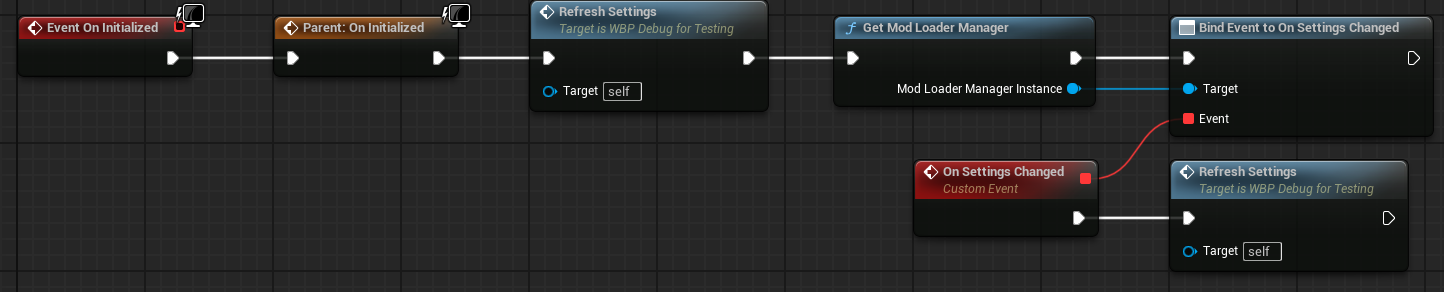
This keeps the widget synchronized with the saved PDML values without duplicating the setting application logic.
React to keybind input
PDML checks registered keybind settings centrally and exposes bindings that are currently down through the Mod Loader’s OnKeybindDown dispatcher.
This allows every mod to use the same input path regardless of how many keybind settings are registered. Your mod does not need to create a separate Blueprint input event for every configurable key.
Get the PDML Mod Loader reference with GetModLoaderManager, then bind to:
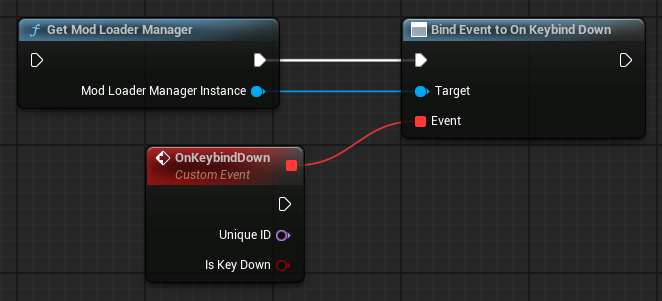
The dispatcher identifies the setting and the Input Chord that caused the event. In your callback, compare the returned setting name with the Unique ID of the keybind you registered.
For example:
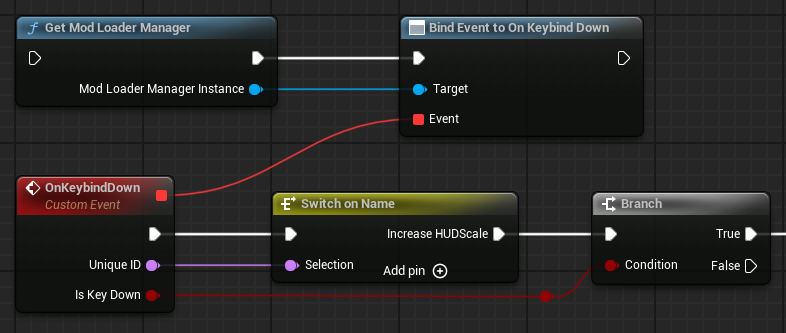
If your mod has several keybinds, route the returned setting name to the appropriate logic:
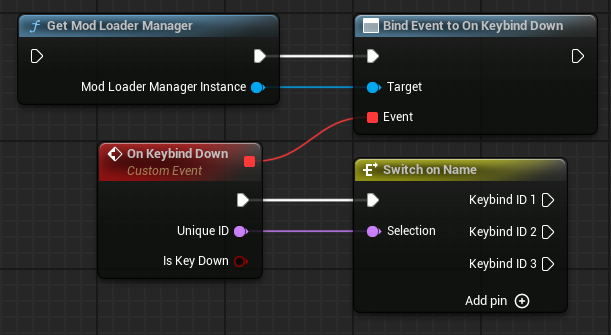
OnKeybindDown represents a binding being down, so code connected directly to it may run repeatedly while the player holds the chord. Do not treat it as a guaranteed one-shot press event unless your mod adds its own press/hold state handling.
Because PDML performs the keybind checks centrally, this approach scales without requiring each mod to maintain its own input manager.
|
Use the keybind setting’s internal Unique ID for comparisons, not its Display Text. Display Text is user-facing and may change, while the Unique ID is the stable identifier for Blueprint logic. |
Set values from Blueprint
PDML also exposes setter functions when a mod needs to change one of its settings programmatically:
-
SetToggleSettingValue -
SetFloatSettingValue -
SetColorSettingValue -
SetStringSetting -
SetChoiceSetting -
SetKeybindSettingValue
Use the same Config Name and Unique Name used by the getter functions.
For normal user-facing settings, prefer allowing the player to make changes through the PDML settings menu. Use the setters when the mod itself has a reason to change a saved setting.
Recommended workflow
A complete custom-settings workflow is:
-
Open your mod’s
PDA_ModMetaasset. -
Add one or more elements to the Settings array.
-
Give each group a Unique ID and Display Text.
-
Add settings to the appropriate type arrays.
-
Give every setting a stable Unique ID and Row Index.
-
Set the default values and any type-specific options.
-
In your Blueprint, call
GetCategoryNameFromModNameto obtain the Config Name. -
Use the appropriate
Get…SettingValuefunction with the Config Name and setting Unique ID. -
Bind to the Mod Loader’s
OnSettingsChangeddispatcher when your mod needs to react immediately to settings changed in the PDML menu. -
Re-fetch the values your mod uses when
OnSettingsChangedfires, then refresh the affected UI or gameplay logic. -
For keybind settings, bind to the Mod Loader’s
OnKeybindDowndispatcher and filter by the setting Unique ID.
Example: configurable HUD crosshair
Suppose a HUD mod registers these settings:
| Unique ID | Type | Row Index |
|---|---|---|
ShowCrosshair |
Toggle |
0 |
CrosshairScale |
Float |
1 |
CrosshairColor |
Color |
2 |
CrosshairStyle |
Choice |
3 |
GrowCrosshair |
Keybind |
4 |
The HUD widget can then:
-
call
GetToggleSettingValueforShowCrosshairto control visibility, -
call
GetFloatSettingValueforCrosshairScaleto control size, -
call
GetColorSettingValueforCrosshairColorto set the brush color, -
call
GetChoiceSettingValueforCrosshairStyleto select a visual style, -
bind to
OnSettingsChangedand re-fetch those values whenever the player changes the settings, -
and listen to
OnKeybindDownforGrowCrosshairto apply held/down input using the player’s configured primary or secondary chord.
PDML handles the settings UI, saved values, change notifications, and keybind configuration, while the mod only needs to register the settings and use their Unique IDs at runtime.